UI Concepts Framework · CHAPTER 4 OF 8

Screen selection and moodboards

Step 3 Choose the Screens for the UI Concept

Start With The Key Screens

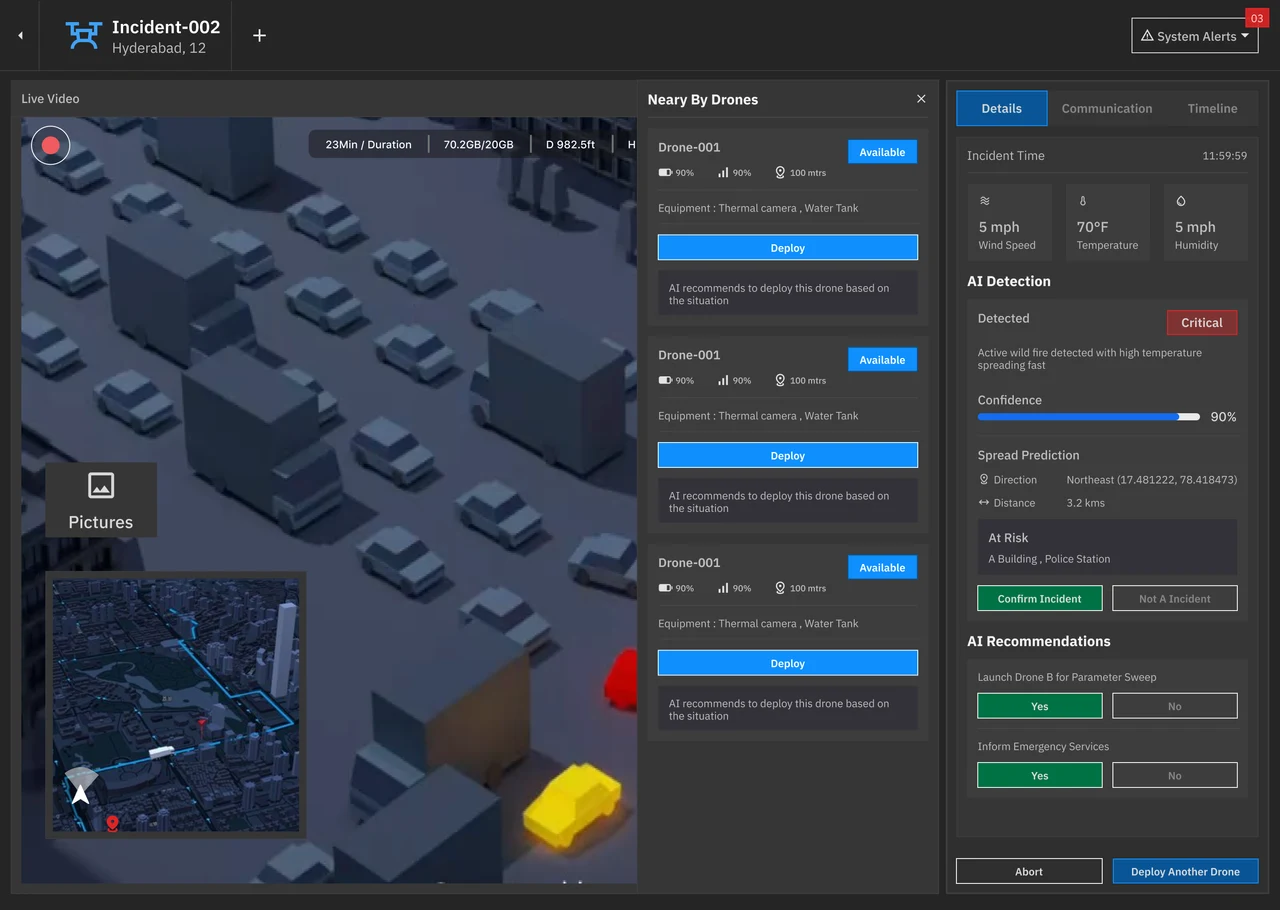
You do not need to design every screen. Select 2–4 key screens that represent the software’s main workflows and interface patterns.

​

Each screen should show a different part of the concept: Navigation, hierarchy, data, forms, actions, states, and content.

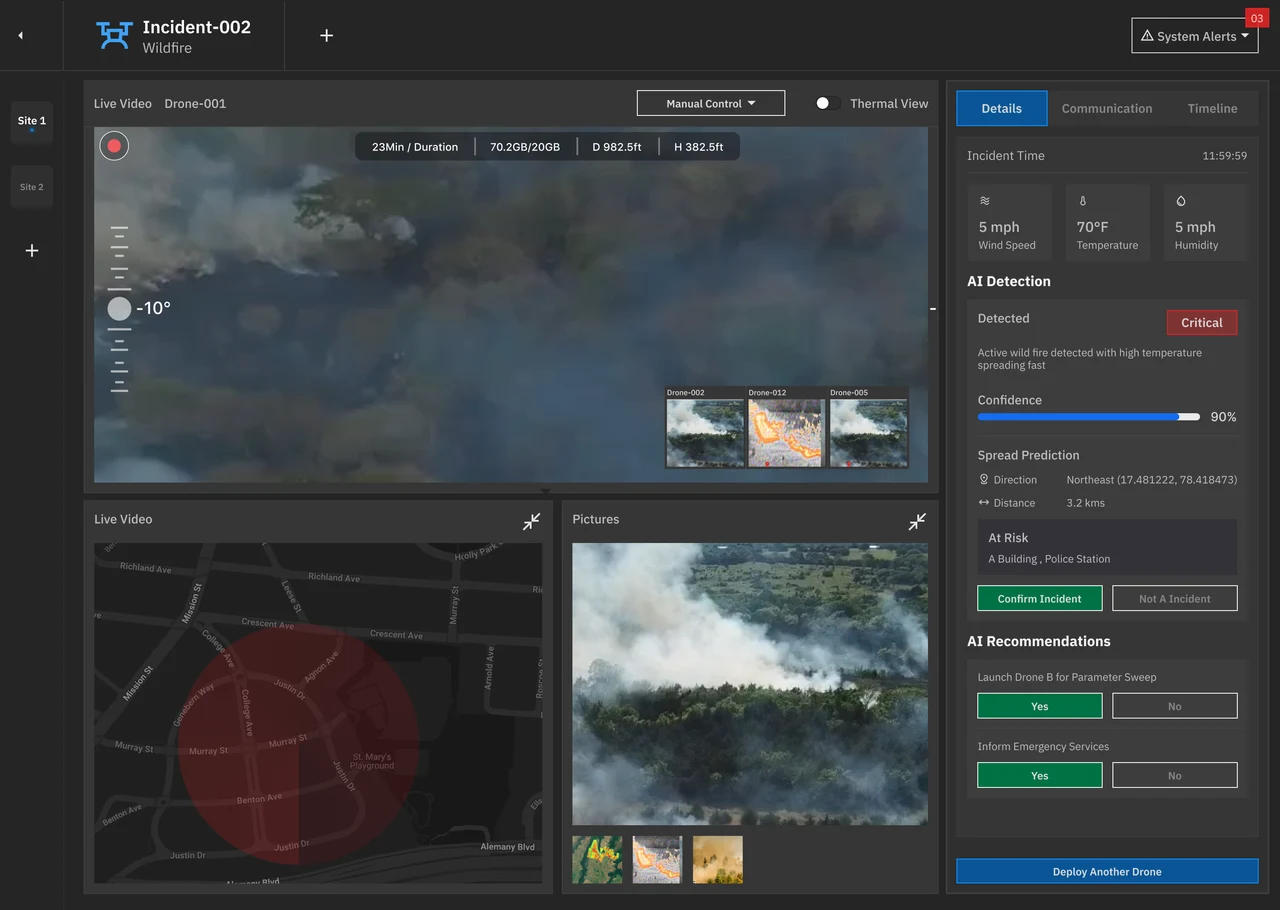
Illustration accompanying Start With The Key Screens

Start With The Key Screens

You do not need to design every screen. Select 2–4 key screens that represent the software’s main workflows and interface patterns.

Each screen should show a different part of the concept: Navigation, hierarchy, data, forms, actions, states, and content.
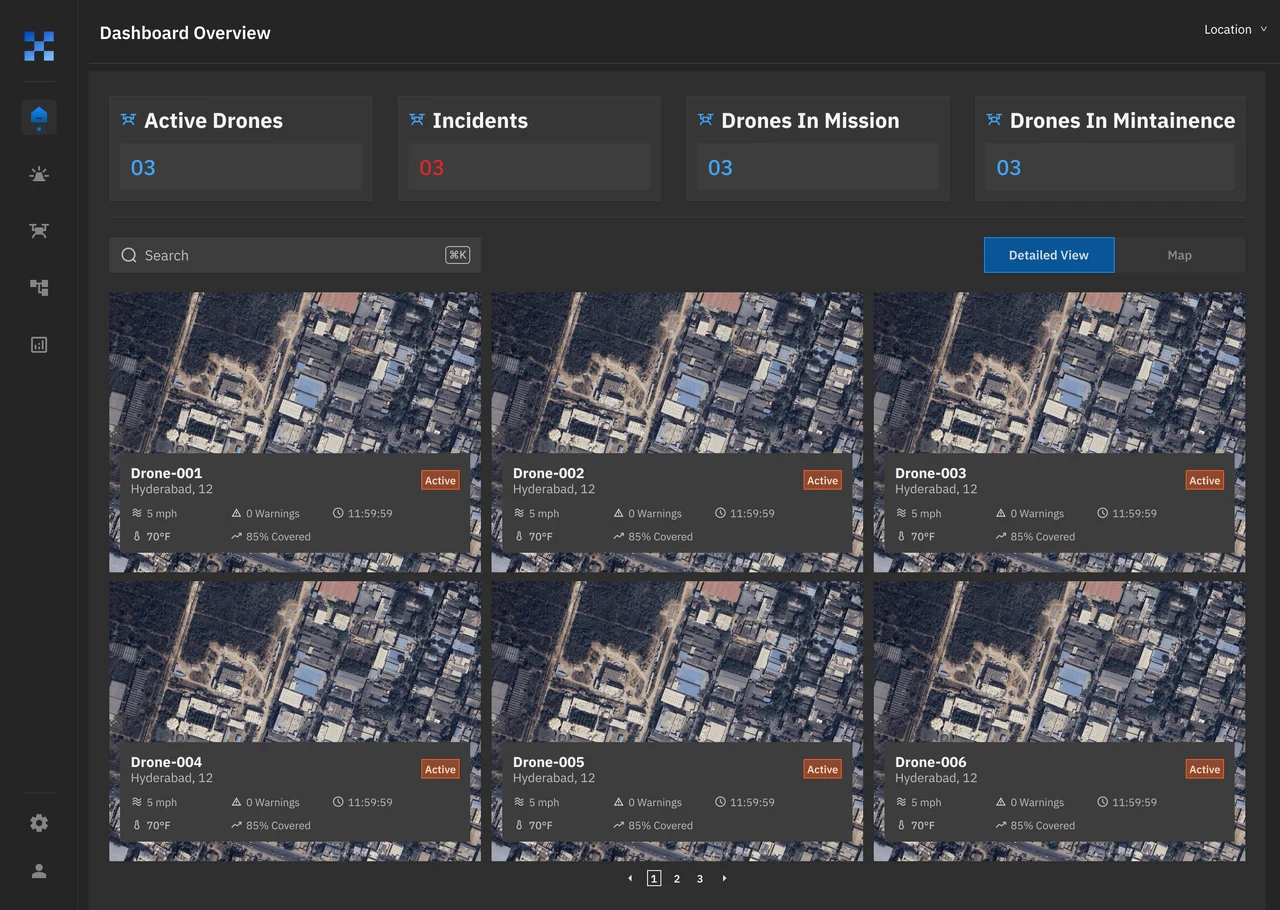
Illustration accompanying Start With The Key Screens

Example

Dossier Management Software

Example

Dossier Management Software

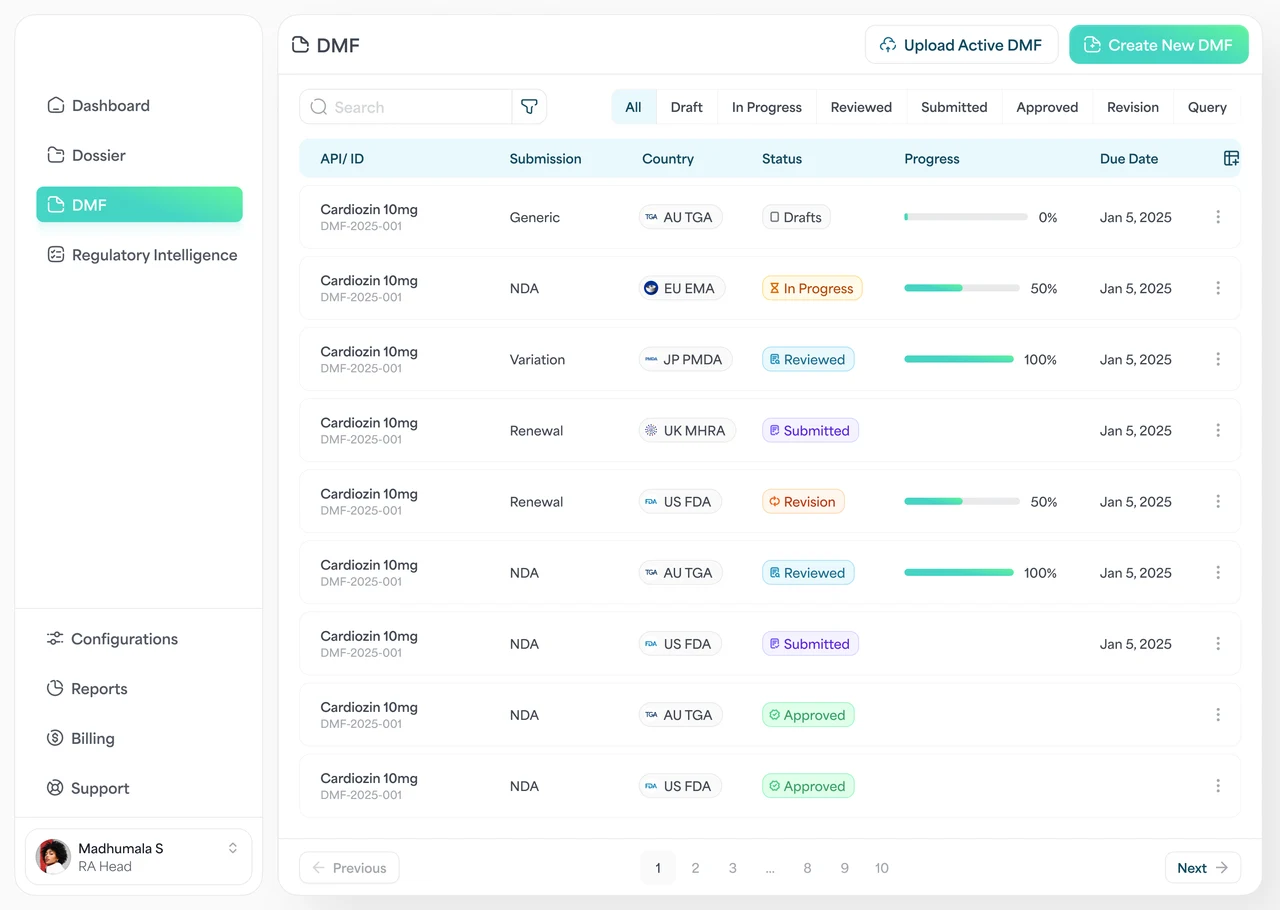
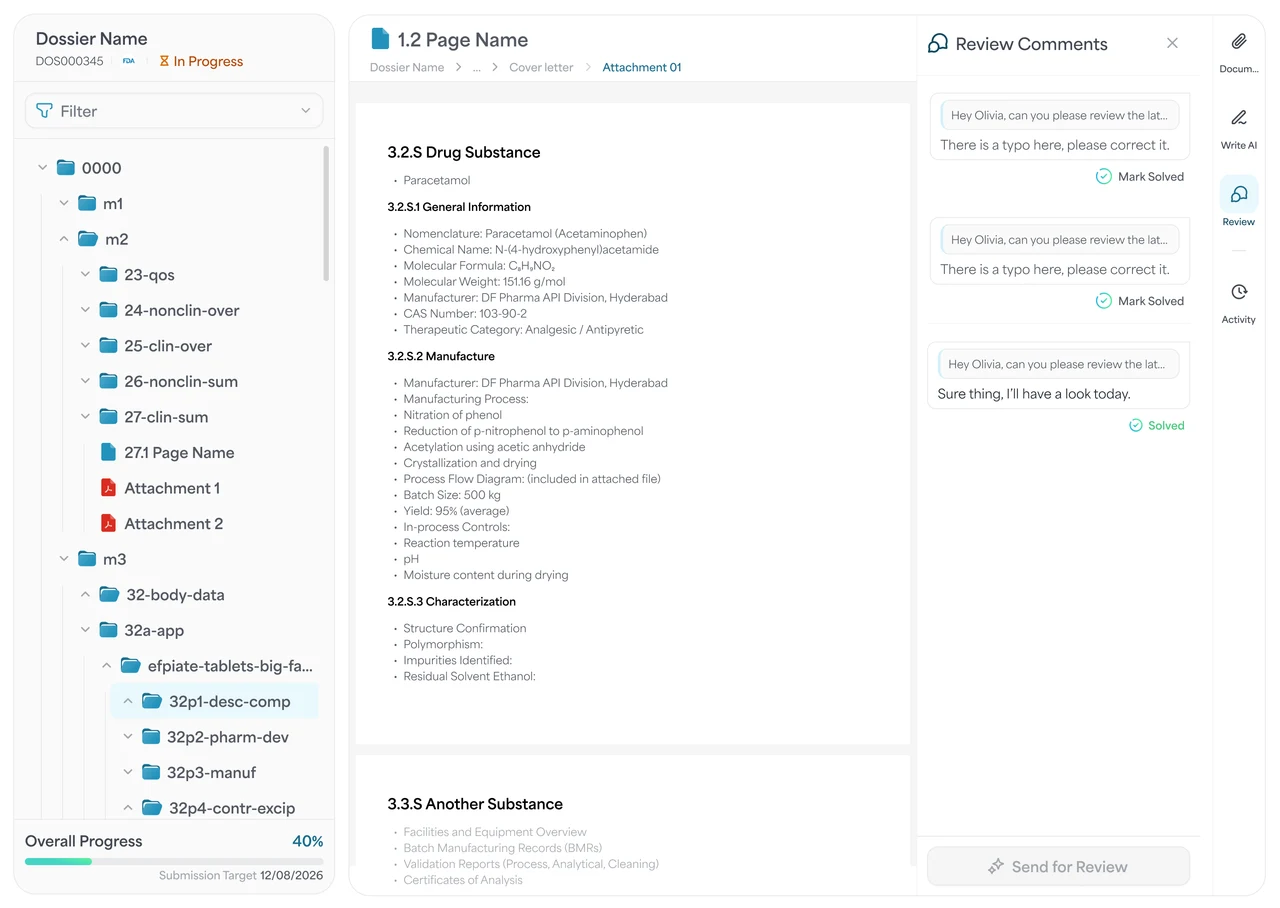
Choose Screens From the Main Product Flow

The Dossier’s core workflow involved creating and managing documents.

For the Dossier UI concept, we selected key screens from workflow: Dashboard, AI Chatbot, Document Writing, Empty State

​

Together, they represented the product’s main workflow and important interface patterns.

Illustration accompanying Choose Screens From the Main Product Flow

Choose Screens From the Main Product Flow

The Dossier’s core workflow involved creating and managing documents. For the Dossier UI concept, we selected key screens from workflow: Dashboard, AI Chatbot, Document Writing, Empty State

Together, they represented the product’s main workflow and important interface patterns.

Illustration accompanying Choose Screens From the Main Product Flow

Empty States Must Be Included

Every UI Concept Should Show an Empty State

​

No matter which screens are selected, design at least one empty-state screen for each concept.

​

Empty states reveal how the interface behaves before data, content, or activity is available.

Dossier Concept-1

File Not Found

Empty States Must Be Included: Dossier Concept-1 File Not Found Files moved to trash No New Notifications found Dossier Concept-2

Files moved to trash

Empty States Must Be Included: Dossier Concept-1 File Not Found Files moved to trash No New Notifications found Dossier Concept-2

No New Notifications found

Empty States Must Be Included: Dossier Concept-1 File Not Found Files moved to trash No New Notifications found Dossier Concept-2

Dossier Concept-2

File Not Found

Empty States Must Be Included: File Not Found Files moved to trash No New Notifications found

Files moved to trash

Empty States Must Be Included: File Not Found Files moved to trash No New Notifications found

No New Notifications found

Empty States Must Be Included: File Not Found Files moved to trash No New Notifications found

Empty States Must Be Included

Every UI Concept Should Show an Empty State

No matter which screens are selected, design at least one empty-state screen for each concept.

Empty states reveal how the interface behaves before data, content, or activity is available.

Dossier Concept-1

File Not Found

Empty States Must Be Included: Dossier Concept-1 File Not Found Files moved to trash No New Notifications found Dossier Concept-2

Files moved to trash

Empty States Must Be Included: Dossier Concept-1 File Not Found Files moved to trash No New Notifications found Dossier Concept-2

No New Notifications found

Empty States Must Be Included: Dossier Concept-1 File Not Found Files moved to trash No New Notifications found Dossier Concept-2

Dossier Concept-2

File Not Found

Empty States Must Be Included: File Not Found Files moved to trash No New Notifications found

Files moved to trash

Empty States Must Be Included: File Not Found Files moved to trash No New Notifications found

No New Notifications found

Empty States Must Be Included: File Not Found Files moved to trash No New Notifications found

Choose Based On The Software

The Same Screens Will Not Work for Every Product

Screen Selection Depends on the Nature of the Software. Do not use the same dashboard, table, and form combination for every UI concept.

​

The screens should reflect how the particular product is actually used.

Illustration accompanying The Same Screens Will Not Work for Every Product

The Same Screens Will Not Work for Every Product

Screen Selection Depends on the Nature of the Software. Do not use the same dashboard, table, and form combination for every UI concept.

The screens should reflect how the particular product is actually used.

Illustration accompanying The Same Screens Will Not Work for Every Product

Screen Selection Checklist

The Final Check Before moving to next process
If the answer is no for even one or if there is even the tiniest bit ambiguity, the team should not proceed. Understand the context before moving further.

Illustration accompanying The Final Check Before moving to next process

Have two to four screens been selected?

Does at least one screen represent the core workflow?

Is the most common layout included?

Is at least one complex screen included?

Do the screens test different UI patterns?

Are the major components represented?

Have you understood:

Have you understood:

  • Have two to four screens been selected?

  • Does at least one screen represent the core workflow?

  • Is the most common layout included?

  • Is at least one complex screen included?

  • Do the screens test different UI patterns?

  • Are the major components represented?

Have you understood:

The Final Check Before moving to next process

If the answer is no for even one or if there is even the tiniest bit ambiguity, the team should not proceed. Understand the context before moving further.

Have two to four screens been selected?

Does at least one screen represent the core workflow?

Is the most common layout included?

Is at least one complex screen included?

Do the screens test different UI patterns?

Are the major components represented?

Illustration accompanying The Final Check Before moving to next process

Step 3 Takeaway

Select screens that represent the software , not just the presentation

​

Choose two to four screens that collectively demonstrate the software’s major workflows, layouts, components, information patterns, and states.

Step 3 Takeaway: Selecting screens for presentation Selecting screens that represent the software

Selecting screens for presentation

Selecting screens that represent the software

Step 3 Takeaway: Selecting screens for presentation Selecting screens that represent the software

Step 3 Takeaway

Select screens that represent the software , not just the presentation

Choose two to four screens that collectively demonstrate the software’s major workflows, layouts, components, information patterns, and states.

Step 3 Takeaway: Selecting screens for presentation Selecting screens that represent the software

Selecting screens for presentation

Selecting screens that represent the software

Step 3 Takeaway: Selecting screens for presentation Selecting screens that represent the software

Step 4 Create the Moodboards

Visualise the UI Direction

Now that the selected screens and intended brand personality are clear, the next step is to create a moodboard.

​

It helps visualise how the UI concept could look and feel before designing the screens.

Illustration accompanying Visualise the UI Direction

Visualise the UI Direction

Now that the selected screens and intended brand personality are clear, the next step is to create a moodboard.

It helps visualise how the UI concept could look and feel before designing the screens.

Illustration accompanying Visualise the UI Direction

What Is a Moodboard?

A mood board is a visual collage that communicates the intended look and feel of the software.

​

It brings together references for:

Colours,Typography, Images, Icons, Illustrations, Layouts, Other visual elements
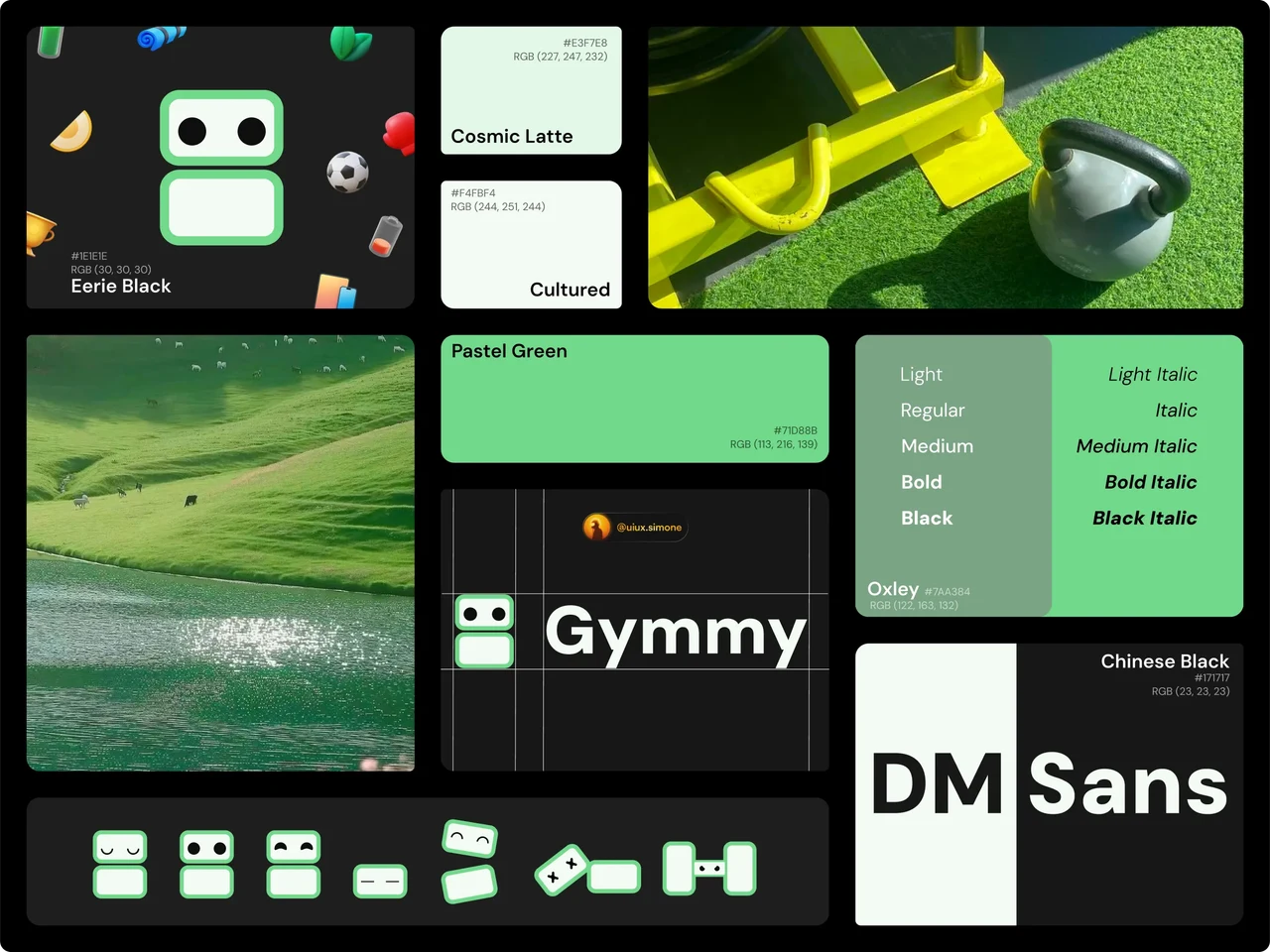
Illustration accompanying What Is a Moodboard?

What Is a Moodboard?

A mood board is a visual collage that communicates the intended look and feel of the software.

It brings together references for:

Colours,Typography, Images, Icons, Illustrations, Layouts, Other visual elements

Illustration accompanying What Is a Moodboard?

Keep Every Reference Aligned With the Brand

The references selected for the moodboard should reflect the brand persona defined earlier.

​

For example, a professional and trustworthy product will require a different visual direction from a playful and approachable product.

Reference 1

Reference 2

Keep Every Reference Aligned With the Brand: Reference 1 Reference 2

Keep Every Reference Aligned With the Brand

The references selected for the moodboard should reflect the brand persona defined earlier.

For example, a professional and trustworthy product will require a different visual direction from a playful and approachable product.

Reference 1

Reference 2

Keep Every Reference Aligned With the Brand: Reference 1 Reference 2

Find Relevant Inspiration

The references should work well together and support the intended brand personality.

Find Relevant Inspiration: Colour combinations Typography styles Layout treatments Icon styles Illustration directions

Colour combinations

Find Relevant Inspiration: Colour combinations Typography styles Layout treatments Icon styles Illustration directions

Typography styles

Find Relevant Inspiration: Colour combinations Typography styles Layout treatments Icon styles Illustration directions

Layout treatments

Find Relevant Inspiration: Colour combinations Typography styles Layout treatments Icon styles Illustration directions

Icon styles

Find Relevant Inspiration: Colour combinations Typography styles Layout treatments Icon styles Illustration directions

Illustration directions

Find Relevant Inspiration: Colour combinations Typography styles Layout treatments Icon styles Illustration directions

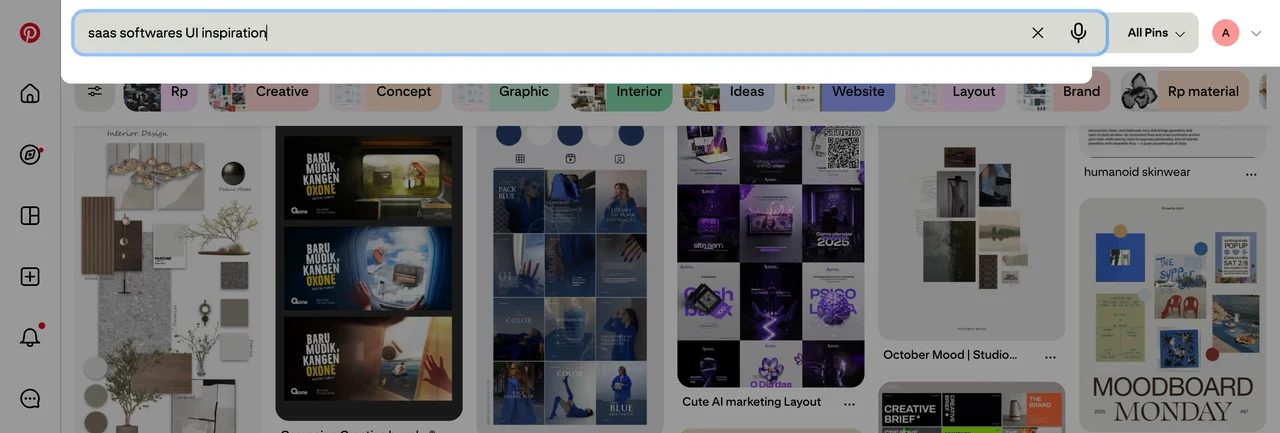
We use platforms such as Pinterest and Dribbble to explore:

Find Relevant Inspiration

The references should work well together and support the intended brand personality.

We use platforms such as Pinterest and Dribbble to explore:

Find Relevant Inspiration: Colour combinations Typography styles Layout treatments Icon styles Illustration directions

Illustration directions

Find Relevant Inspiration: Colour combinations Typography styles Layout treatments Icon styles Illustration directions

Colour combinations

Find Relevant Inspiration: Colour combinations Typography styles Layout treatments Icon styles Illustration directions

Typography styles

Find Relevant Inspiration: Colour combinations Typography styles Layout treatments Icon styles Illustration directions

Icon styles

Find Relevant Inspiration: Colour combinations Typography styles Layout treatments Icon styles Illustration directions

Layout treatments

Do Not Look Only at SaaS Products

Inspiration Can Come From Different Industries. Do not limit the search only to SaaS or software from the same industry. Useful ideas for colours, typography, layouts, illustrations, or visual styles may come from other industries and design categories.

Illustration accompanying Do Not Look Only at SaaS Products

Do Not Look Only at SaaS Products

Inspiration Can Come From Different Industries. Do not limit the search only to SaaS or software from the same industry. Useful ideas for colours, typography, layouts, illustrations, or visual styles may come from other industries and design categories.

Illustration accompanying Do Not Look Only at SaaS Products

Search Based on the Selected Screens

Look for references based on the screens selected in the previous step.

Search Based on the Selected Screens: Dashboard layouts Empty states Navigation AI chat interfaces Table styles Forms Charts and cards

Dashboard layouts

Search Based on the Selected Screens: Dashboard layouts Empty states Navigation AI chat interfaces Table styles Forms Charts and cards

Empty states

Navigation

Search Based on the Selected Screens: Dashboard layouts Empty states Navigation AI chat interfaces Table styles Forms Charts and cards

AI chat interfaces

Search Based on the Selected Screens: Dashboard layouts Empty states Navigation AI chat interfaces Table styles Forms Charts and cards

Table styles

Search Based on the Selected Screens: Dashboard layouts Empty states Navigation AI chat interfaces Table styles Forms Charts and cards

Forms

Search Based on the Selected Screens: Dashboard layouts Empty states Navigation AI chat interfaces Table styles Forms Charts and cards

Charts and cards

For Example:

Search Based on the Selected Screens

Look for references based on the screens selected in the previous step.

For Example:

Search Based on the Selected Screens: Dashboard layouts Empty states Navigation AI chat interfaces Table styles Forms Charts and cards

Dashboard layouts

Search Based on the Selected Screens: Dashboard layouts Empty states Navigation AI chat interfaces Table styles Forms Charts and cards

Empty states

Navigation

Search Based on the Selected Screens: Dashboard layouts Empty states Navigation AI chat interfaces Table styles Forms Charts and cards

AI chat interfaces

Search Based on the Selected Screens: Dashboard layouts Empty states Navigation AI chat interfaces Table styles Forms Charts and cards

Table styles

Search Based on the Selected Screens: Dashboard layouts Empty states Navigation AI chat interfaces Table styles Forms Charts and cards

Forms

Search Based on the Selected Screens: Dashboard layouts Empty states Navigation AI chat interfaces Table styles Forms Charts and cards

Charts and cards

Study Competitors

The goal is not to copy competitors, but to avoid looking exactly like them.

Study Competitors: Common visual patterns Colours used in the market Repeated design styles Opportunities to create distinction

Common visual patterns

Study Competitors: Common visual patterns Colours used in the market Repeated design styles Opportunities to create distinction

Colours used in the market

Study Competitors: Common visual patterns Colours used in the market Repeated design styles Opportunities to create distinction

Repeated design styles

Study Competitors: Common visual patterns Colours used in the market Repeated design styles Opportunities to create distinction

Opportunities to create distinction

Study Competitor Interfaces To Understand:

Study Competitors

The goal is not to copy competitors, but to avoid looking exactly like them.

Study Competitors: Common visual patterns Colours used in the market Repeated design styles Opportunities to create distinction

Common visual patterns

Study Competitors: Common visual patterns Colours used in the market Repeated design styles Opportunities to create distinction

Colours used in the market

Study Competitors: Common visual patterns Colours used in the market Repeated design styles Opportunities to create distinction

Repeated design styles

Study Competitors: Common visual patterns Colours used in the market Repeated design styles Opportunities to create distinction

Opportunities to create distinction

Study Competitor Interfaces To Understand:

Create a Recognisable Product Identity

The visual direction should feel distinct enough for users to associate the interface with the company.

​

For example, Swiggy is strongly associated with orange and its illustration style, while Zomato is recognised through its red visual identity.


Zomato

Create a Recognisable Product Identity: Zomato Swiggy

Swiggy

Create a Recognisable Product Identity: Zomato Swiggy

Create a Recognisable Product Identity

The visual direction should feel distinct enough for users to associate the interface with the company.

For example, Swiggy is strongly associated with orange and its illustration style, while Zomato is recognised through its red visual identity.

Zomato

Create a Recognisable Product Identity: Zomato Swiggy

Swiggy

Create a Recognisable Product Identity: Zomato Swiggy

Two Concepts Need Two Moodboards

Since we create two distinct UI concepts, we also create two different moodboards—one for each direction.

​

The two moodboards should explore different visual possibilities while remaining connected to the same brand.
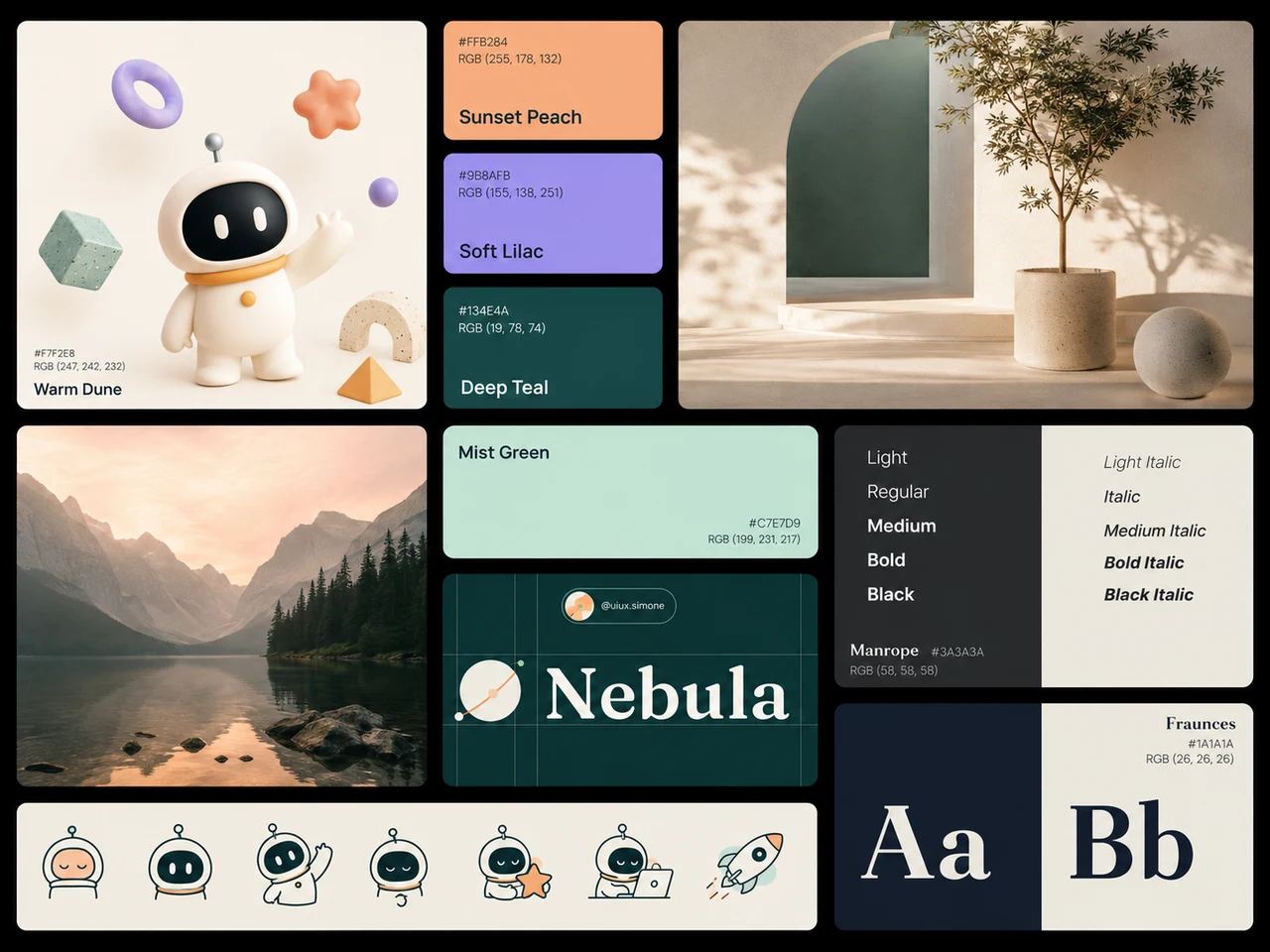
Concept - 1

Two Concepts Need Two Moodboards: Concept - 1 Concept - 2

Concept - 2

Two Concepts Need Two Moodboards: Concept - 1 Concept - 2

Two Concepts Need Two Moodboards

Since we create two distinct UI concepts, we also create two different moodboards—one for each direction.

The two moodboards should explore different visual possibilities while remaining connected to the same brand.

Concept - 1

Two Concepts Need Two Moodboards: Concept - 1 Concept - 2

Concept - 2

Two Concepts Need Two Moodboards: Concept - 1 Concept - 2

Align With Stakeholders

Moodboards help designers and stakeholders understand the proposed visual directions before UI design begins.

​

They make it easier to confirm whether everyone is aligned on the intended look and feel.

Align With Stakeholders: lide up Typography

lide

Align With Stakeholders: lide up Typography

up

Typography

Align With Stakeholders: lide up Typography

Align With Stakeholders

Moodboards help designers and stakeholders understand the proposed visual directions before UI design begins.

They make it easier to confirm whether everyone is aligned on the intended look and feel.

Align With Stakeholders: lide up Typography

lide

Align With Stakeholders: lide up Typography

up

Typography

Align With Stakeholders: lide up Typography

Use the Approved Moodboard as a Reference

Once the visual direction is approved, use the moodboard as a reference while designing the UI concept.

​

It should guide the colours, typography, layouts, icons, illustrations, and overall visual style.

Use the Approved Moodboard as a Reference: lide up Typography

lide

Use the Approved Moodboard as a Reference: lide up Typography

up

Typography

Use the Approved Moodboard as a Reference: lide up Typography

Use the Approved Moodboard as a Reference

Once the visual direction is approved, use the moodboard as a reference while designing the UI concept.

It should guide the colours, typography, layouts, icons, illustrations, and overall visual style.


Use the Approved Moodboard as a Reference: lide up Typography

lide

Use the Approved Moodboard as a Reference: lide up Typography

up

Typography

Use the Approved Moodboard as a Reference: lide up Typography

Step-4 Takeaway

A Moodboard Defines the Visual Direction Before UI Design Begins

Step-4 Takeaway: Brand Persona Selected Screens Design Inspiration Competitor Distinction All of the above into a clear visual reference.

Brand

Persona

Step-4 Takeaway: Brand Persona Selected Screens Design Inspiration Competitor Distinction All of the above into a clear visual reference.

Selected Screens

Step-4 Takeaway: Brand Persona Selected Screens Design Inspiration Competitor Distinction All of the above into a clear visual reference.

Design Inspiration

Step-4 Takeaway: Brand Persona Selected Screens Design Inspiration Competitor Distinction All of the above into a clear visual reference.

Competitor Distinction

All of the above into a clear visual reference.

Moodboard Connects

Step-4 Takeaway

A Moodboard Defines the Visual Direction Before UI Design Begins

Step-4 Takeaway: Brand Persona Selected Screens Design Inspiration Competitor Distinction All of the above into a clear visual reference.

Brand

Persona

Step-4 Takeaway: Brand Persona Selected Screens Design Inspiration Competitor Distinction All of the above into a clear visual reference.

Selected Screens

Step-4 Takeaway: Brand Persona Selected Screens Design Inspiration Competitor Distinction All of the above into a clear visual reference.

Design Inspiration

Step-4 Takeaway: Brand Persona Selected Screens Design Inspiration Competitor Distinction All of the above into a clear visual reference.

Competitor Distinction

All of the above into a clear visual reference.

Moodboard Connects

FRAMEWORK CONTENTS

UI Concepts Framework

Search documentation

Search scope

Search across all eight guides.

Diagram detail