

Visual Flow Framework · CHAPTER 3 OF 5
Collecting and organizing screenshots
Step 1 Collect Screenshots
Capture the complete flow, not just the happy path.
Once you get access to the software, take screenshots from the user’s first action to the actual completion of the task.
Include the ideal flow, errors, empty states, modals, decisions, edge cases, and back actions.
The goal is to understand how the software behaves in real usage, not just when everything goes right.
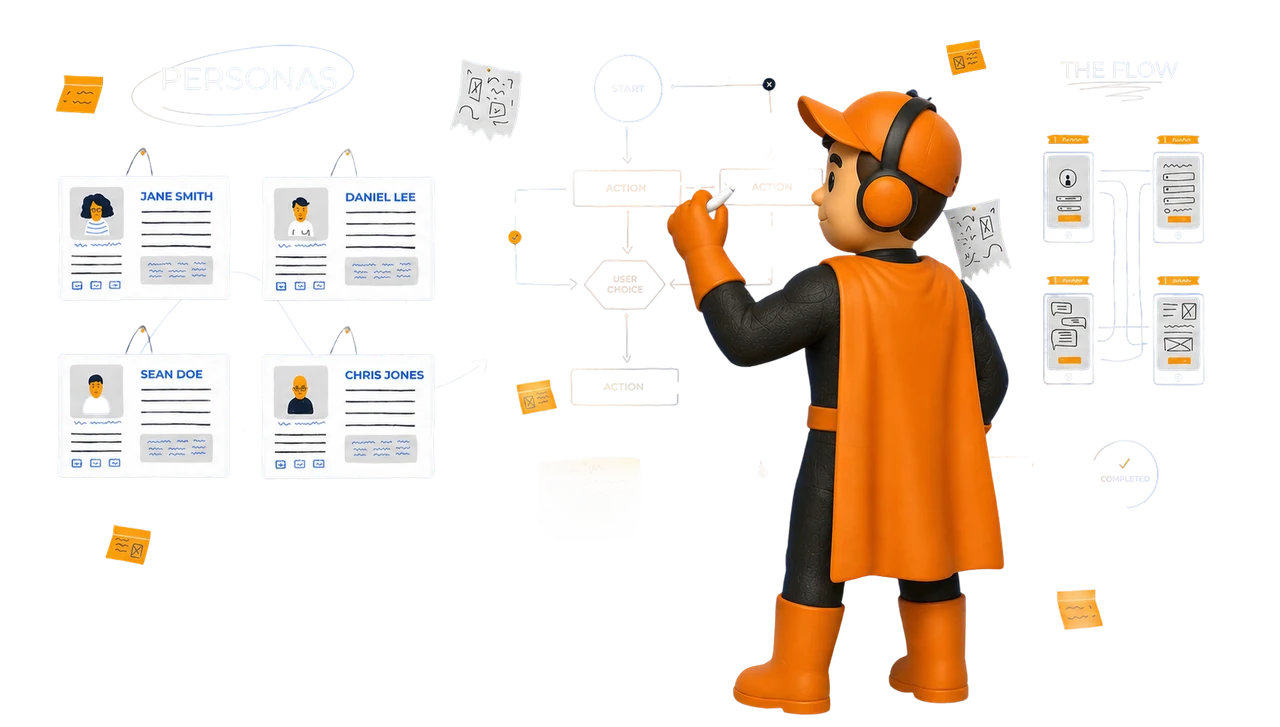


Capture the complete flow, not just the happy path.
Once you get access to the software, take screenshots from the user’s first action to the actual completion of the task.
Include the ideal flow, errors, empty states, modals, decisions, edge cases, and back actions.
The goal is to understand how the software behaves in real usage, not just when everything goes right.
Capture the complete flow, not just the happy path.
Once you get access to the software, take screenshots from the user’s first action to the actual completion of the task.
Include the ideal flow, errors, empty states, modals, decisions, edge cases, and back actions.
The goal is to understand how the software behaves in real usage, not just when everything goes right.
Example:
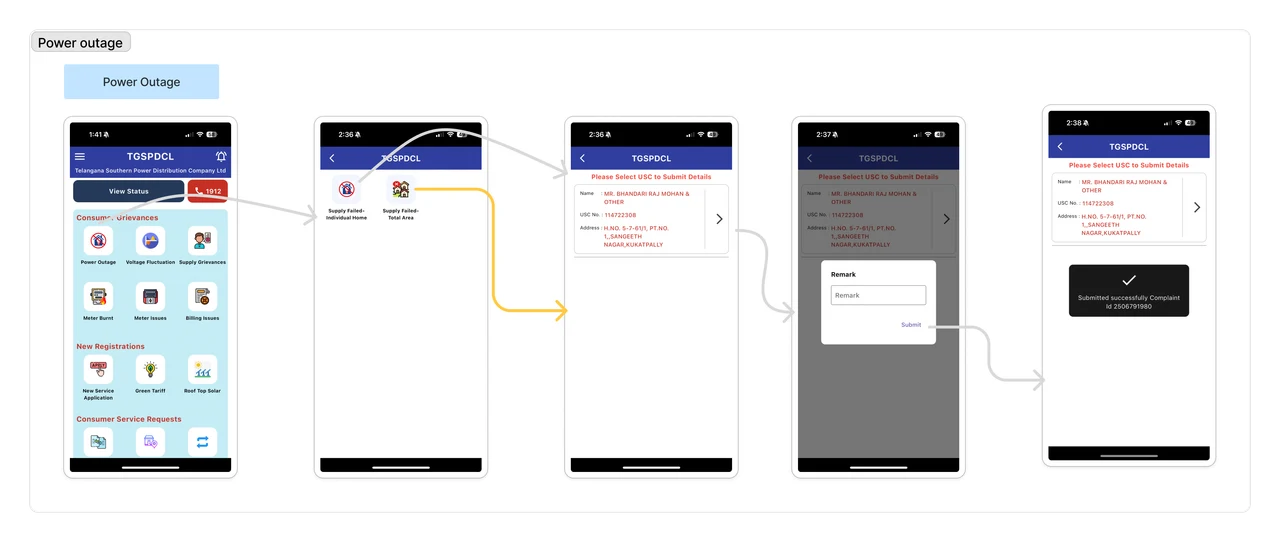
In a complaint flow, the task does not end when the user submits the complaint.
The task ends when the complaint is resolved.
So the flow should be mapped from complaint submission to final resolution.
Don’t stop at the action. Map until the user’s goal is complete.




Example:
In a complaint flow, the task does not end when the user submits the complaint. The task ends when the complaint is resolved. So the flow should be mapped from complaint submission to final resolution.
Don’t stop at the action. Map until the user’s goal is complete.
Example:
In a complaint flow, the task does not end when the user submits the complaint. The task ends when the complaint is resolved. So the flow should be mapped from complaint submission to final resolution.
Don’t stop at the action. Map until the user’s goal is complete.
Swipe to explore the complete figure
Why Flow-Wise Screenshot Collection Matters
Flow-Wise Screenshot Collection Matters
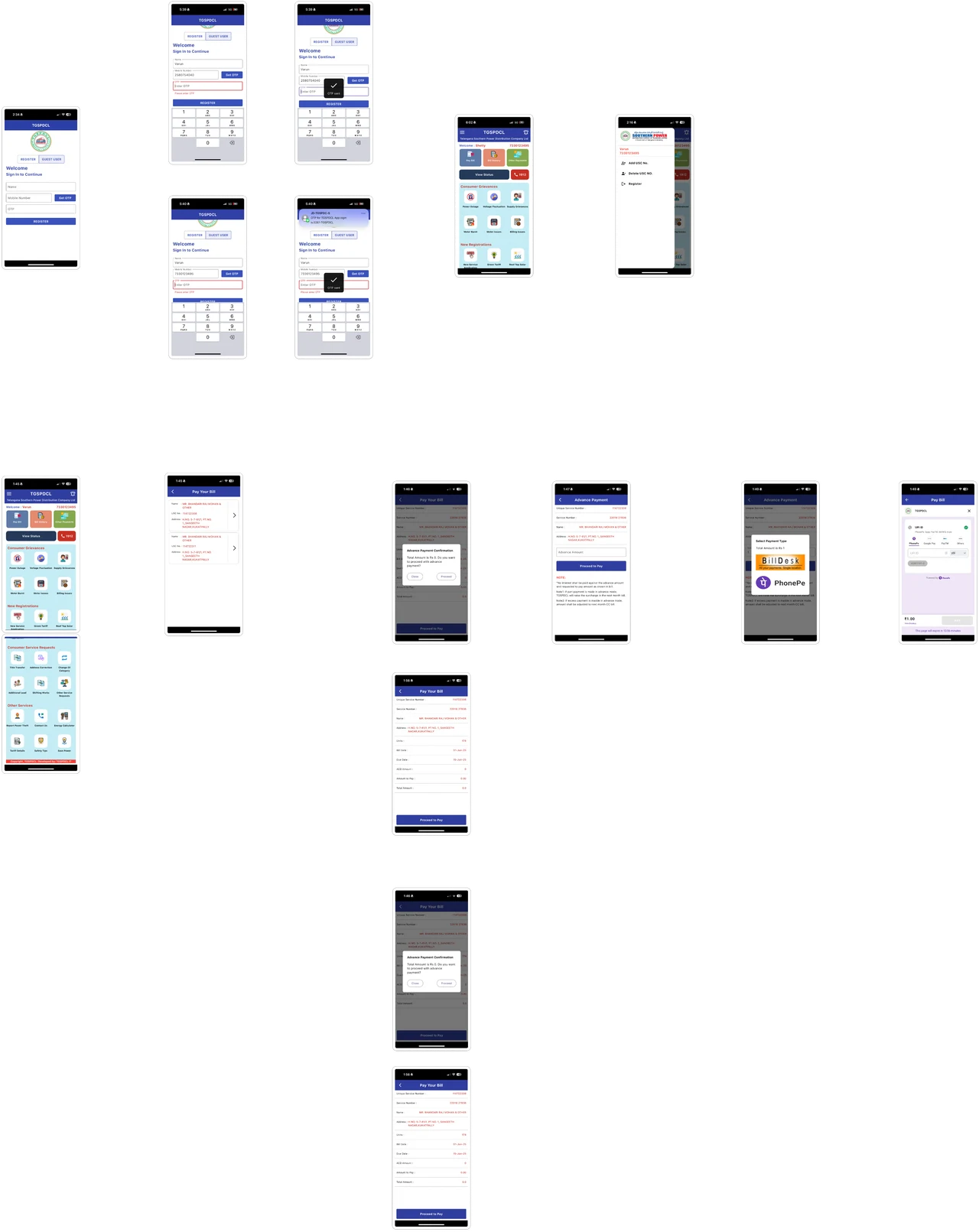
When screenshots are captured in order, the team can clearly see how the user moves from one step to the next.
It helps identify where the flow breaks, where the user needs guidance, where errors appear, and where the task becomes confusing.
Without flow-wise screenshots, the redesign may miss the real problems hidden between screens.
Flow Breaks
Errors
Guidance required
Missing elements

Flow-Wise Screenshot Collection Matters
When screenshots are captured in order, the team can clearly see how the user moves from one step to the next.
It helps identify where the flow breaks, where the user needs guidance, where errors appear, and where the task becomes confusing.
Without flow-wise screenshots, the redesign may miss the real problems hidden between screens.
Flow Breaks
Errors
Guidance required
Missing elements
Flow-Wise Screenshot Collection Matters
When screenshots are captured in order, the team can clearly see how the user moves from one step to the next.
It helps identify where the flow breaks, where the user needs guidance, where errors appear, and where the task becomes confusing.
Without flow-wise screenshots, the redesign may miss the real problems hidden between screens.
Flow Breaks
Errors
Guidance required
Missing elements
Observe While Capturing the Flow
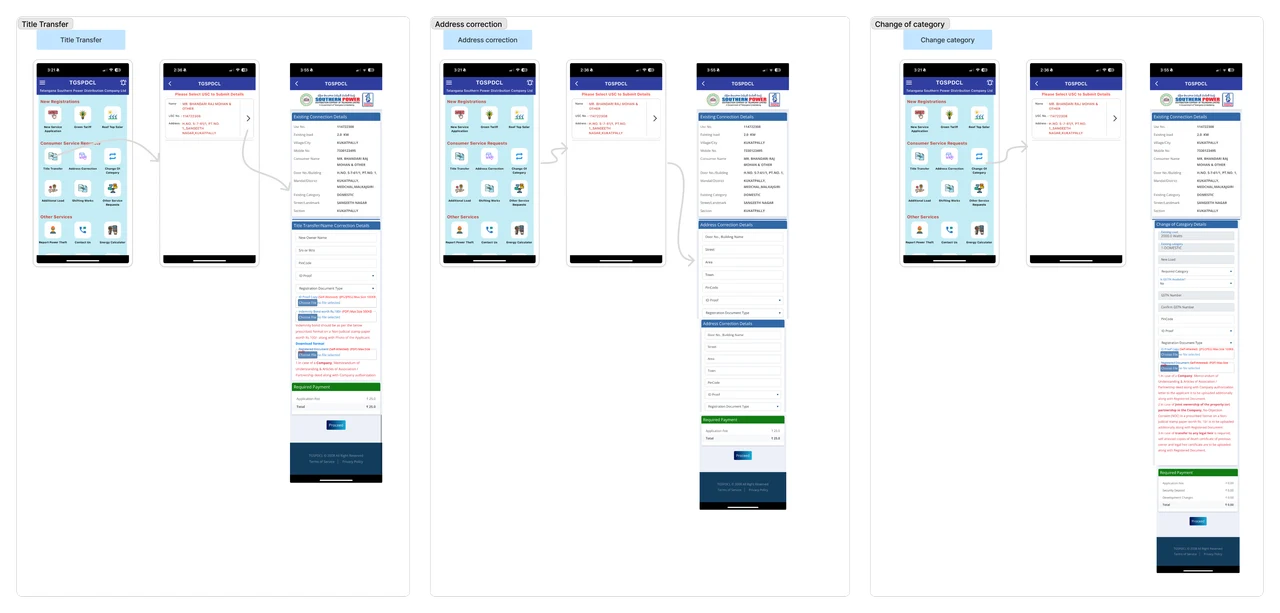
While taking screenshots, don’t just capture the screens passively.
Actively observe what is happening at each step.
Note down anything that makes the user’s work harder — unclear labels, missing guidance, confusing errors, extra steps, hidden actions.
These small observations become the first clues for identifying UX gaps.



To be fixed




To be improved


Idea
Observe While Capturing the Flow
While taking screenshots, don’t just capture the screens passively.
Actively observe what is happening at each step.
Note down anything that makes the user’s work harder — unclear labels, missing guidance, confusing errors, extra steps, hidden actions.
These small observations become the first clues for identifying UX gaps.
To be fixed
To be improved
Idea
Observe While Capturing the Flow
While taking screenshots, don’t just capture the screens passively.
Actively observe what is happening at each step.
Note down anything that makes the user’s work harder — unclear labels, missing guidance, confusing errors, extra steps, hidden actions.
These small observations become the first clues for identifying UX gaps.
To be fixed
To be improved
Idea
Example:
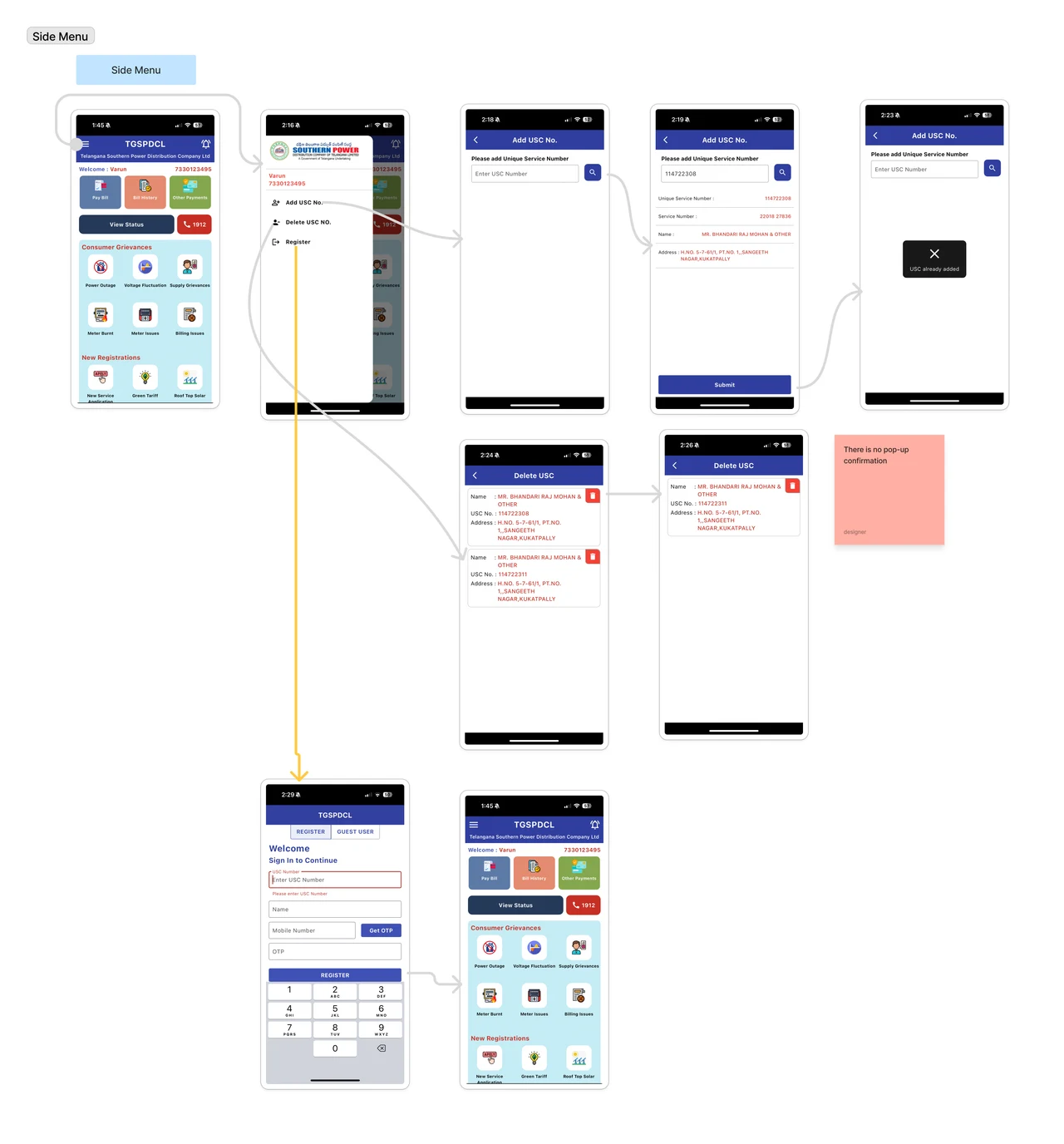
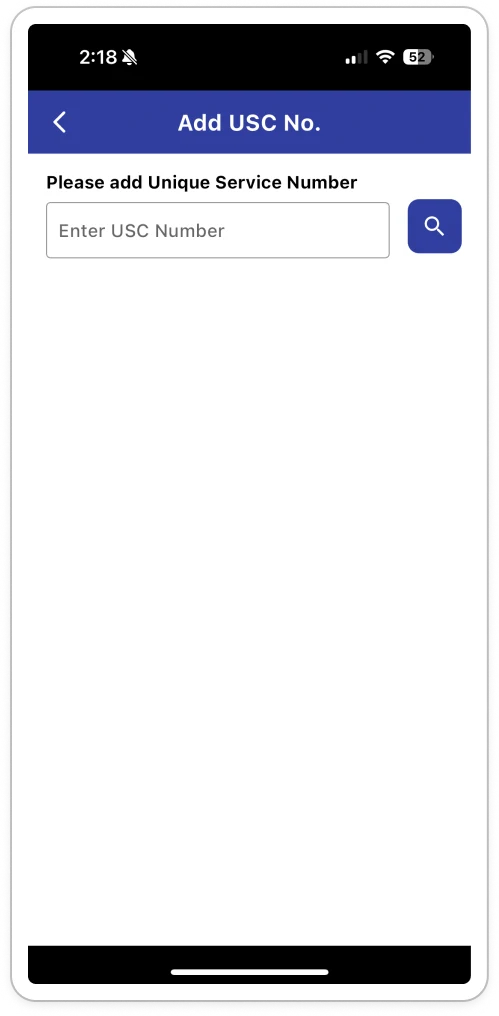
In the TG Electricity app, users are asked to enter a USC number.
But many users may not know what USC means or where to find it.
That small unclear input creates friction before the user can even move forward.
This is why screenshots should be captured with active observation.
Every unclear label, missing helper text and confusing error should be noted then and there.

Example:
In the TG Electricity app, users are asked to enter a USC number.
But many users may not know what USC means or where to find it.
That small unclear input creates friction before the user can even move forward.
This is why screenshots should be captured with active observation.
Every unclear label, missing helper text and confusing error should be noted then and there.
Example:
In the TG Electricity app, users are asked to enter a USC number.
But many users may not know what USC means or where to find it.
That small unclear input creates friction before the user can even move forward.
This is why screenshots should be captured with active observation.
Every unclear label, missing helper text and confusing error should be noted then and there.
Step 2 Understand the Legend / Canvas Format

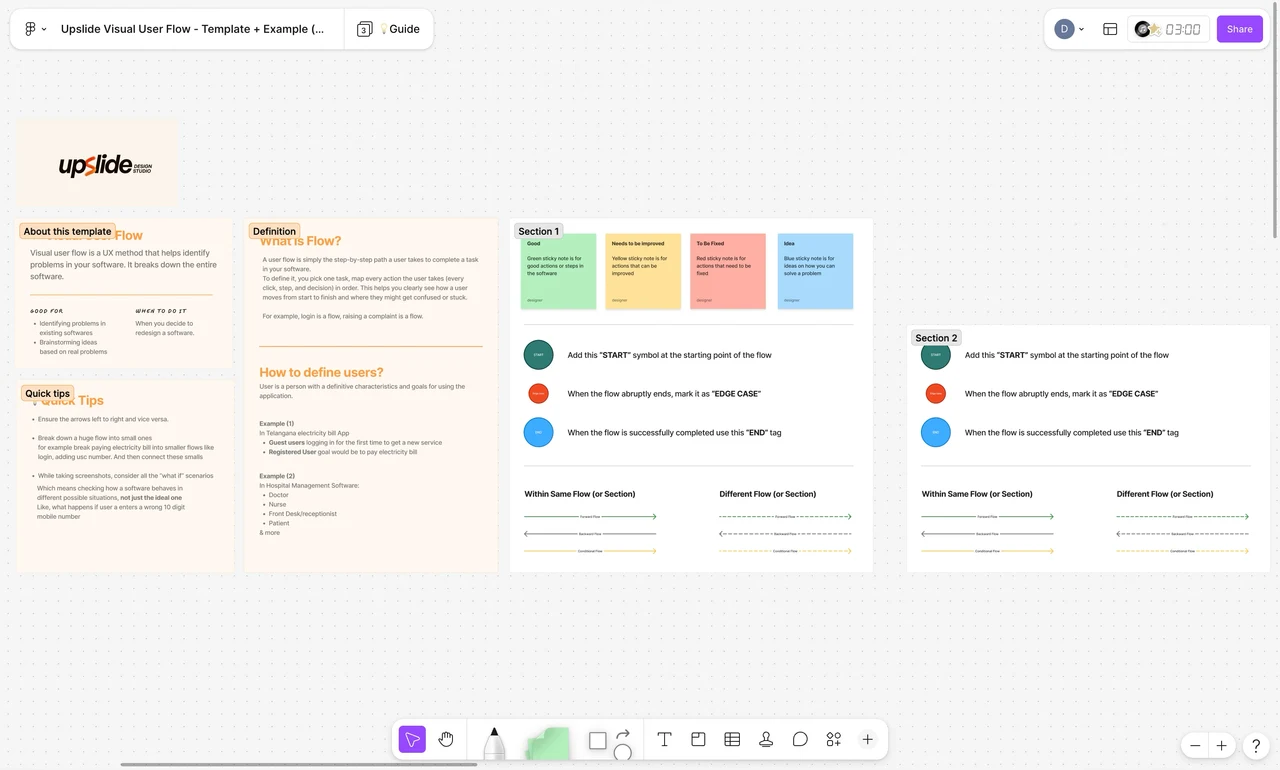
Create a clear system to map the flow.
Create a clear system to map the flow.
Create a clear system to map the flow.
Use our visual user flow template

Use our visual user flow template
Use our visual user flow template
Swipe to explore the complete figure
A messy flow map creates messy understanding.
If the mapping system is not clear, the team will struggle to understand:
- Which path is ideal ?
- Which path is an error ?
- Which flow is conditional ?
- Which screen belongs to which role ?
- Which flows are connected ?
- Where the gap has been identified ?

User Enters
Close
Open
User clicks
Button
Submit
Save


User clicks
User clicks
User clicks
User clicks


A messy flow map creates messy understanding.
If the mapping system is not clear, the team will struggle to understand:
- Which path is ideal ?
- Which path is an error ?
- Which flow is conditional ?
- Which screen belongs to which role ?
- Which flows are connected ?
- Where the gap has been identified ?
User Enters
Close
Open
User clicks
Button
Submit
Save
User clicks
User clicks
User clicks
User clicks
A messy flow map creates messy understanding.
If the mapping system is not clear, the team will struggle to understand:
- Which path is ideal ?
- Which path is an error ?
- Which flow is conditional ?
- Which screen belongs to which role ?
- Which flows are connected ?
- Where the gap has been identified ?
User Enters
Close
Open
User clicks
Button
Submit
Save
User clicks
User clicks
User clicks
User clicks